Attack Search and Filters
The Attacks section of Wallarm Console (US Cloud or EU Cloud) lets you narrow detected attacks down to the ones you are interested in, change how they are grouped, and save the result as a reusable view. This article describes these capabilities.
To search detected incidents, see Incident Search and Filters.
Filter
The filter field above the attack list builds a filter from conditions. Each condition consists of a field, an operator, and one or more values. Start typing a field name, and Wallarm suggests the fields available for your account and, where the set of values is known, the values as well.
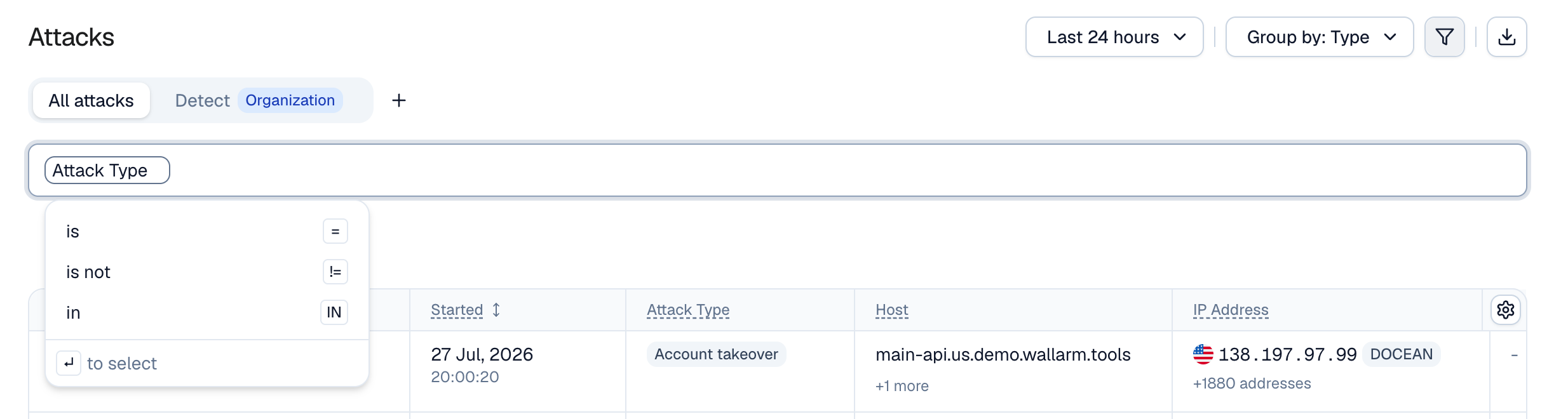
You can filter by the attack attributes, including attack type and subtype, host, path, source IP and its country, HTTP method and response status code, attacked parameter location, user and user role, session, application, API and authentication protocol, CVE, CWE, and OWASP category. Numeric conditions on aggregated metrics, such as the number of requests or unique IPs in an attack, are supported as well.
Several fields are worth knowing about:
-
Attack Type and Attack Subtype offer the attack types Wallarm detects as ready values, from SQL Injection and Brute force to GraphQL query depth and Prompt injection.
-
Blocking Status narrows the list to Blocked, Partially Blocked, or Monitoring attacks.
-
Verification Status narrows the list to True Positive, False Positive, or Unmarked attacks. Wallarm hides false positives by default, so use this field to review them.
-
Attack Payload Content and Parameter Search perform a full-text search in the malicious payload and in the attacked parameter. They support is (contains) and is not (does not contain) only.
Operators
| Operator | Meaning |
|---|---|
| is | The field equals the value |
| is not | The field does not equal the value |
| in | The field equals any of the listed values |
To match a value partially, type * or ? wildcards into it: *.example.com matches any subdomain, *login* matches any path containing login. A value without wildcards is an exact match. Matching with wildcards is case-insensitive, while an exact match is case-sensitive. The HTTP Method field does not support wildcards.
Combining conditions
Conditions can be combined with the AND and OR operators and nested into groups, which allows expressing requirements like "SQL injections or cross-site scripting, coming from outside the corporate network". Conditions combined with AND must all be met; conditions combined with OR require any one of them.
Filtering from the table and charts
Besides typing conditions, you can build the filter from the data you are already looking at:
-
In a table cell, use the context menu to add the cell value to the filter with Show only or Exclude.
-
In the request details, the Source IP, Host, URI, User, and Session ID fields offer Investigate attacks actions that open the attacks matching or excluding that value.
-
In the Statistic panel, click a bar, a pie segment, or a point on the chart to drill into the attacks behind it.
Drilling down adds a breadcrumb trail above the list. The condition you drilled into is displayed as a locked chip in the filter field; click a breadcrumb to step back.
Time range
The time range selector limits the data to a period. Choose one of the relative periods (last hour, 6 hours, 12 hours, 24 hours, 7 days, 30 days, or 90 days), or set an absolute period in the calendar. The maximum period is 6 months.
Grouping
Group by controls how malicious requests are combined into the attacks you see in the list:
-
Type groups by attack type, payload location, and host. This is the default.
-
IP groups by source IP across all hosts, which answers which IPs are attacking you.
-
None applies no grouping and shows individual requests.
-
Custom builds a grouping from up to 4 attributes of your choice.
Grouping changes the rows and the metrics computed for them, not the underlying requests. Statistics and the filter apply to the grouped data.
Views
A view stores a filter, a grouping, a time range, sorting, and a column layout under a name. Views are displayed as tabs above the filter field, which lets you switch between saved perspectives on your attack data in one click.
All attacks is a built-in view that cannot be modified. To build on it, duplicate it first.
Once you change anything in a view, Wallarm offers to save it:
-
Save view stores the changes in the current view.
-
Save as new creates a new view and leaves the original one intact.
-
Reset changes discards the changes.
The menu of a view provides Rename view, Duplicate view, Set as default, Copy link, and Delete view. The default view is the one that opens when you enter the Attacks section.
When creating a view, choose its visibility:
-
This tenant only: the view is available in the current tenant.
-
Organization: the view is available to everyone in your organization, across all its tenants.
Visibility is set at creation and cannot be changed afterwards.
Export
Export attacks as CSV exports the attacks matching the current filter, time range, and grouping, with the columns of the current view. See Creating Reports for the procedure.
API calls
The filtering, grouping, and view capabilities described here are available in the Attacks API, which lets you run the same queries from your own client.